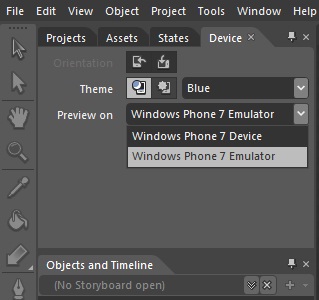
Switch between Windows Phone 7 emulator and Device on debugging in Expression Blend

Well , this might look to be simple post on how to start debugging with emulator or the real device.

Yes , it is simple and easy specially in Visual Studio Express 2010 for Windows Phone 7 .

All that you have to do is select the item ( Windows Phone 7 Emulator or Windows Phone 7 Device ) from the Combo box as shown in the screenshot below  .

Switch between Windows Phone 7 emulator and Device on debugging in Expression Blend

But what about the developers who are new to Expression Blend and want to try the same option …

This is again simple for which i had to spend little more time on the Expression Blend to find this option .

Check the tab named “Device” as shown in the screenshot below  .
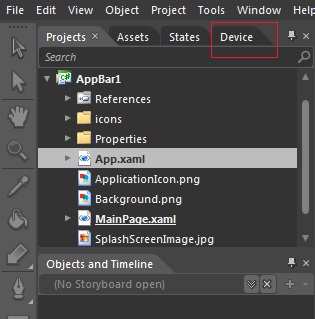
Switch between Windows Phone 7 emulator and Device on debugging in Expression Blend

Now , you should find the option to select the Emulator or Device. But what if you closed the Device tab windows ?, how do one get it back ?
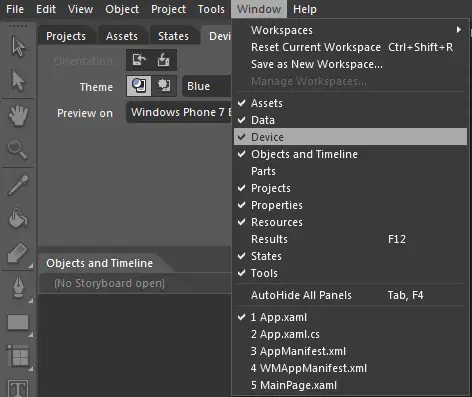
Switch between Windows Phone 7 emulator and Device on debugging in Expression Blend

Go to Window -> Check the Device button as shown below .

Now , you should be able to see the Device tab ..

Leave A Reply

Your email address will not be published. Required fields are marked *

You May Also Like

In this post, you will learn about sync provider notifications in Windows 11 and how to disable or enable it...
In this tutorial, let’s learn how to enable or disable the startup sound in Windows 11. By default, when Windows...
The CameraCaptureTask allows the Windows Phone 7 App to launch the Camera Application . This will be useful when the...