
In one of my previous posts , i talked about Adding the Application Bar in Visual Studio . In this blog post , I will explain about adding the Application Bar in Expression Blend .
Expression Blend provides more Designer support while Adding the Application Bar when compared to Visual Studio .
Here are the steps to add the Application Bar in the Expression Blend .
- Go to Microsoft Expression Blend for Windows Phone
- Click on the new Project and select the template windows phone application in the Expression Blend and provide the project name and click on Ok
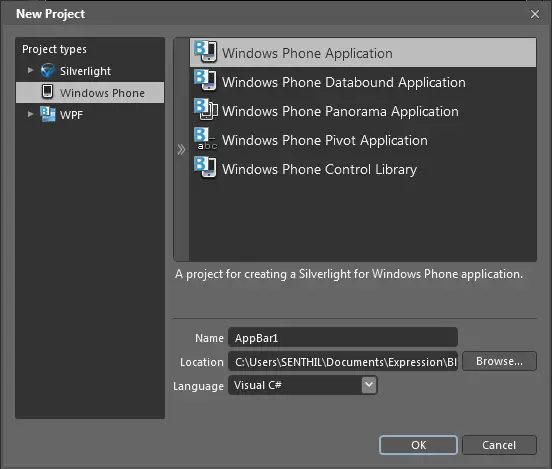
- You might see that there is no precommented xaml code like the one that was generated while creating the project in Visual Studio 2010 .
- Select the Phone ApplicationPage in the Objects and TimeLine
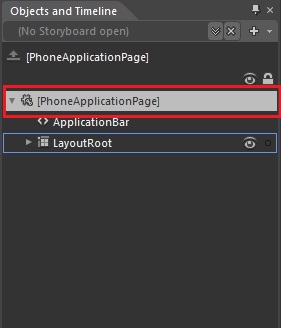
- Check the Common Properties group from the Properties Tab . You can find it in the right side of the Window .

- You should be able to find the ApplicationBar property as well as the New Button to create the ApplicationBar ( Missing in VS2010 ) . Click the new Button to add the ApplicationBar .
- Now , the Common propeties groub will be expanded to show more properties for the ApplicationBar like Adding the Icon Buttons and MenuItems etc .
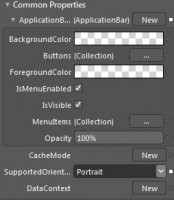
- Click on the Button (…) on the Buttons Property to open the popup window to enter the Icon Buttons
- Click on the Add another item Combo and select ApplicationBarIconButton and provide the IconUri and Text for the Icon Buttons . Note the Default icons that are available are displayed in the dropdown of the IconUri . You can find more of the icons from the SDK installation path : “C:\Program Files\Microsoft SDKs\Windows Phone\v7.0\Icons”
- Similarly , You can add the MenuItem from the … Button next to the MenuItems(Collection) in the Common Properties . A popup window will show up when clicked on the Button , enter the menu name etc … and Click Ok .
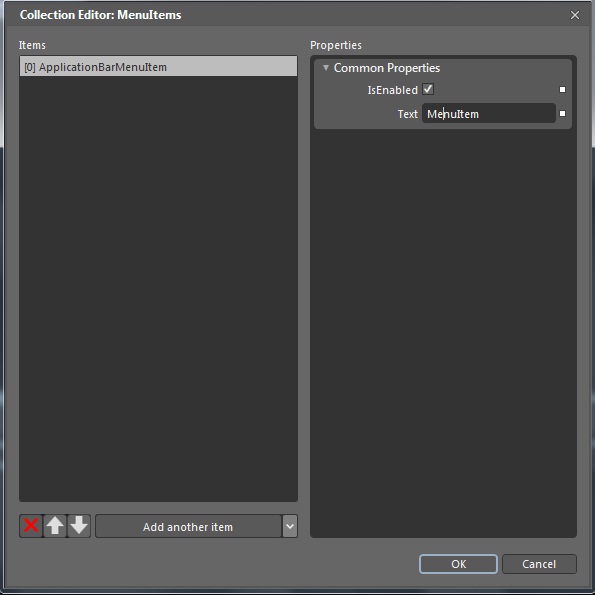
- Now , run the project , you should be able to See the added ApplicationBar with the Menu item and the Icon Button .
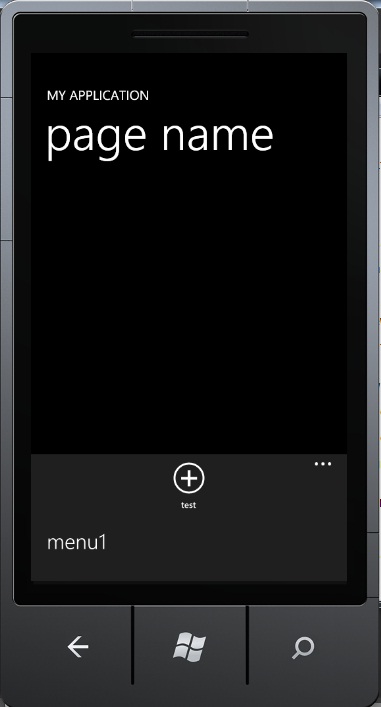
Thats it , the xaml code is generated automatically as we added menu items in the designer .
Easy wasn’t it ??
References
- MSDN : Application Bar for Windows Phone
- Video : Using the ApplicationBar for Windows Phone